
How it fits your plan
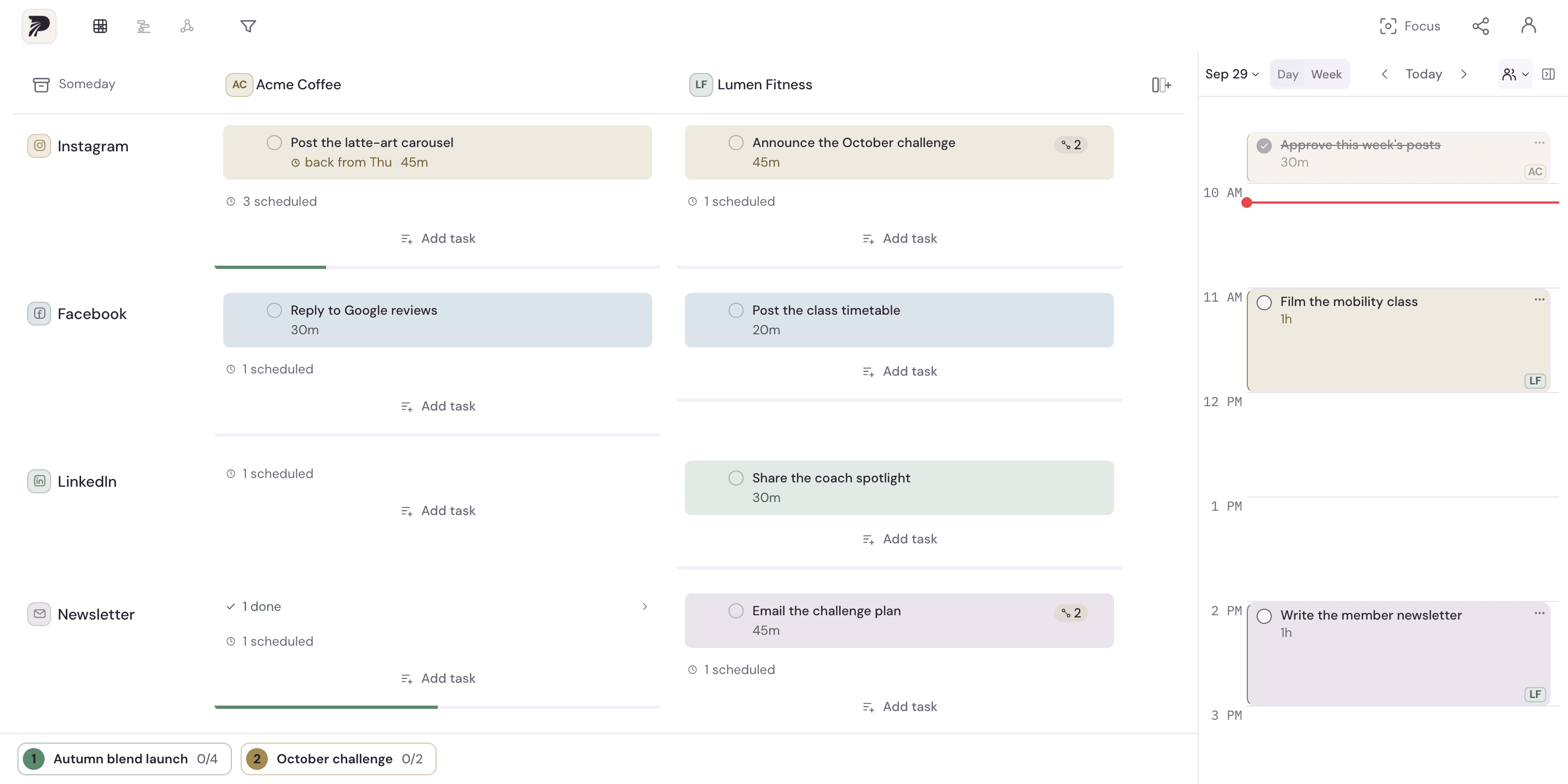
A batch is a named group of linked tasks. Membership is separate from the project's structure: a batch can contain work from multiple projects, while each task retains its original project and channel.
A concrete example
Link a 30-minute release note, a 20-minute client proposal and a 40-minute newsletter outline. Name the batch Friday writing. Back-to-back, the batch takes 90 minutes; the three tasks keep their own project identities.
Put it into practice
Select work that benefits from the same session
Choose related tasks in Overview. You can collect the same kind of work across projects, or collect several channels of work around one launch.
Link and name the batch
Use task linking and give the batch a recognizable name. Review the member tasks and their durations before placing it on the calendar.
Choose how the tasks should sit
Back-to-back placement schedules tasks consecutively. Same-hour placement gives the tasks a shared start time, with the longest task setting the session length.
Schedule or move the connected work
Choose a day and time. When a session needs another slot, move the batch while keeping its members connected. Review the new placement against your calendar commitments.
A few details to keep in mind
- A named batch is a planning group, not an approval workflow or an assignee list.
- A shared start time is useful for related parallel work; it does not mean you can personally do several full-attention tasks at once.