
How it fits your plan
Time blocking assigns a day, start time and duration to planned work. Polylane keeps the task's project and channel connected to that time, so the calendar remains part of the same plan.
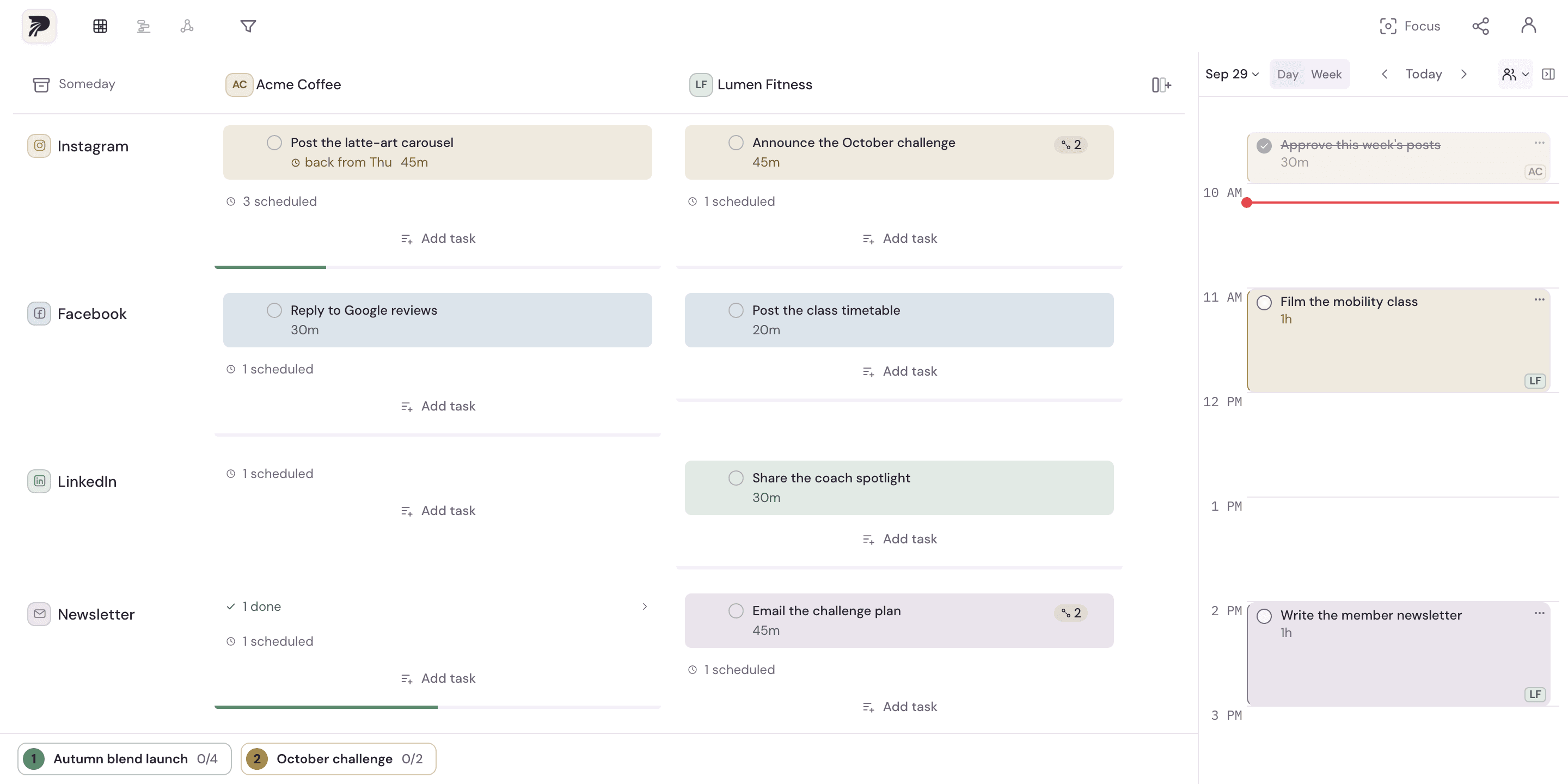
A concrete example
A Friday writing batch starts at 09:30. The release note runs 09:30–10:00, the proposal 10:00–10:20 and the newsletter 10:20–11:00. A 90-minute session now has an explicit place around other commitments.
Put it into practice
Estimate the work
Add a duration to each task. Estimates make the load visible; they are not a guarantee of how long the work will actually take.
Place a task or batch
Use the calendar scheduling controls or drag the work into a day. For a batch, choose consecutive or shared-start placement.
Read busy time alongside the plan
Connect Google Calendar or Outlook accounts to see existing commitments. Choose a slot that makes sense for the work and the time available.
Adjust after reality changes
Move unfinished work to another slot and use day wrap-up or weekly review to decide what needs time next. Paid plans can send selected blocks or export .ics when you need the plan outside Polylane.
A few details to keep in mind
- External calendar sending is one-way: edits in Google or Outlook do not return to the Polylane task.
- Unscheduling work in Polylane does not delete an external event already sent. Review that calendar separately when a sent event changes.