
HOW POLYLANE WORKS
Many projects.
One workable plan.
Put work in its place. Link related tasks across projects. Give the batch time on your calendar.
14 days of Solo · No card · Free plan afterward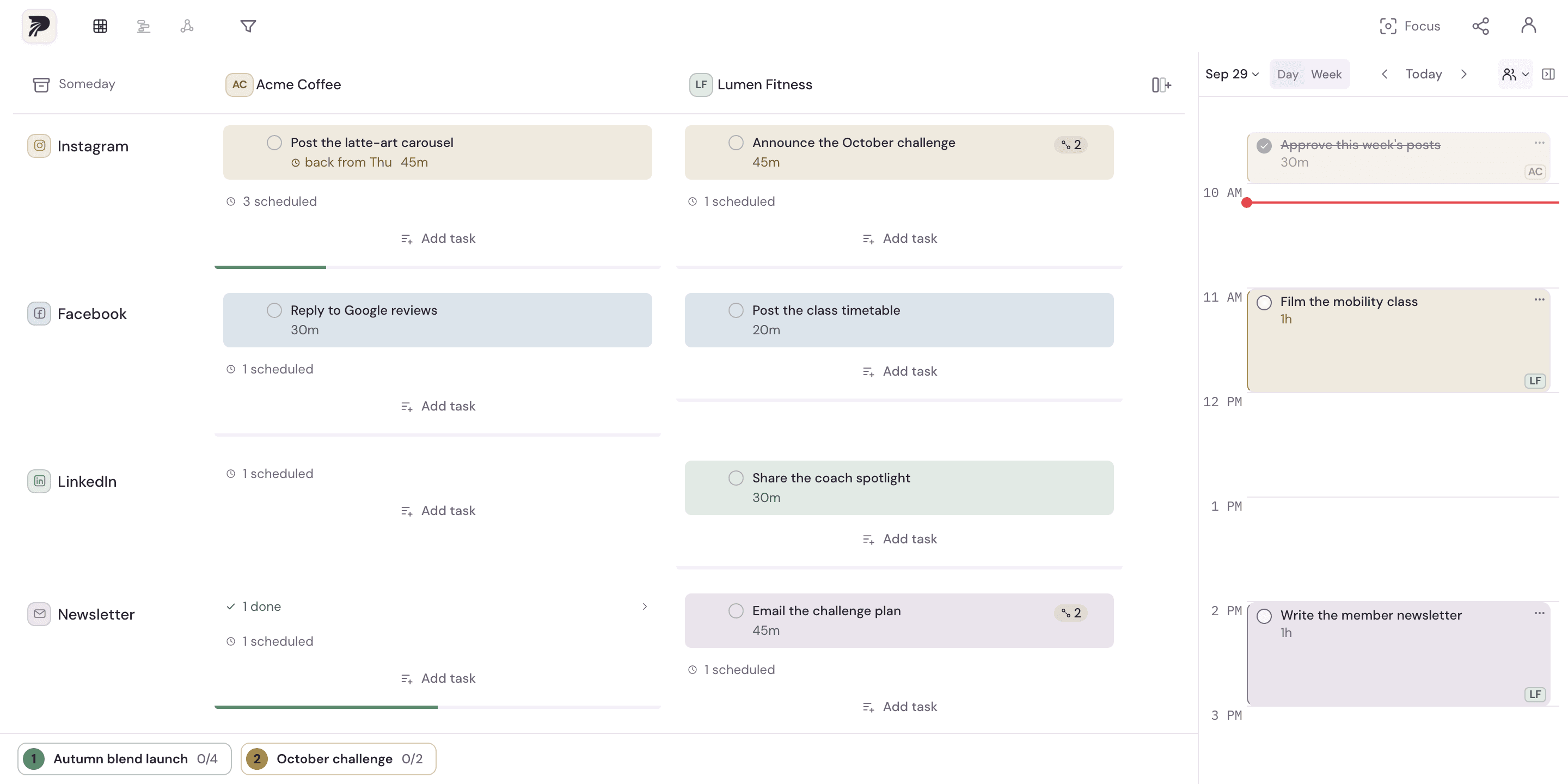
Separate projects.
A shared session.
01GIVE THE WORK A PLACE
Start with the way
you already think.
A project is what you’re building. A channel is the kind of work it needs. Your matrix holds both, so the plan makes sense in either direction.
- Projects
- Products, clients, courses, newsletters.
- Channels
- Writing and Design. Or Instagram and YouTube. You choose.
Down Acme Coffee: every channel for one client.
The cell already knows its project and channel.
02TURN IDEAS INTO TASKS
Capture it where
it belongs.
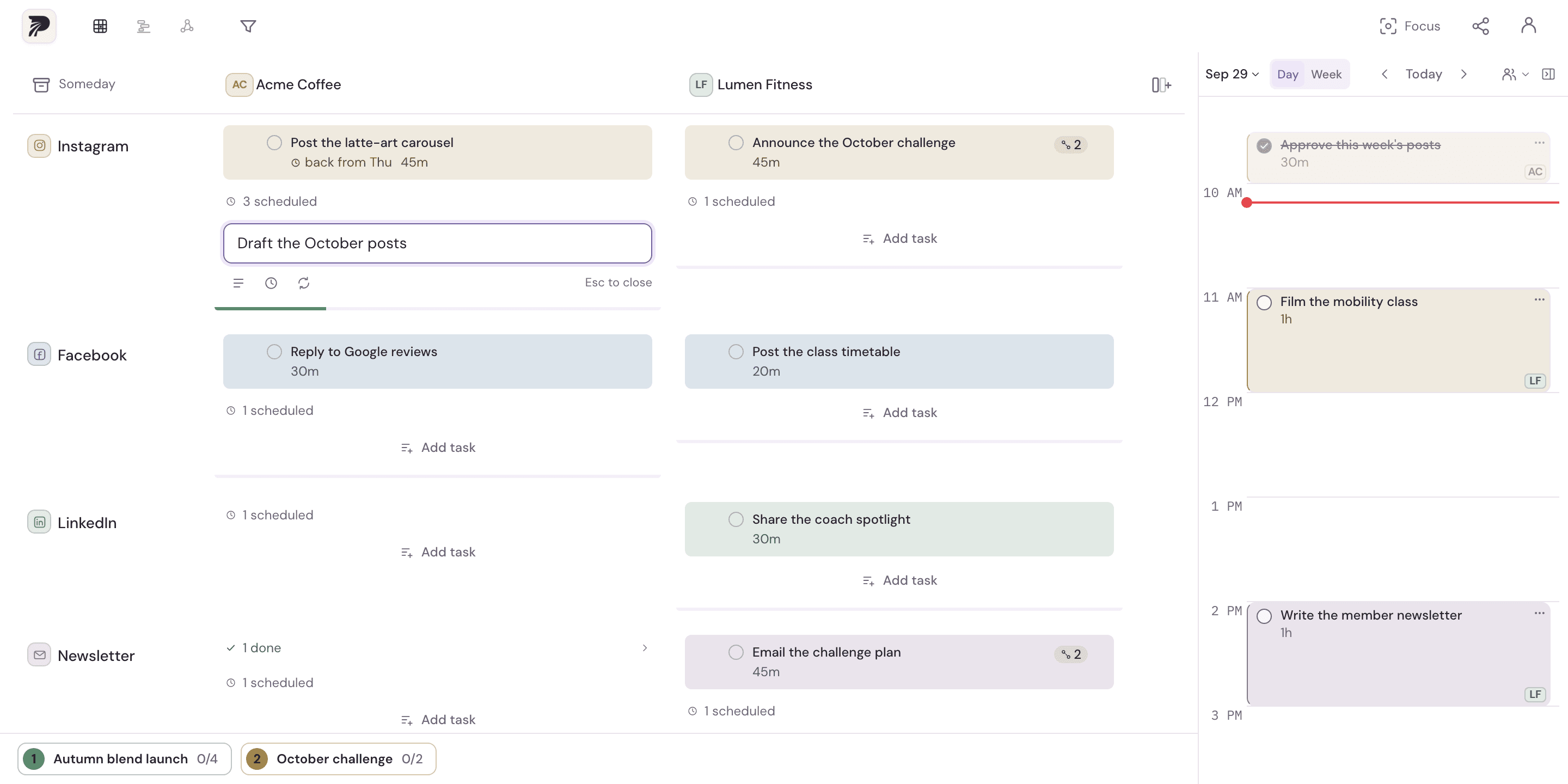
Use Add task in a cell. Add a useful duration so the calendar has something real to work with. Open the full form when the task needs notes or a repeat.
A release note has a size.
Now it can have a place in the day.
03MAKE THE CONNECTION YOURSELF
From three projects
to one named session.
Pick an example and take the controls. These are the actual planner components, with a guide alongside your actions. Explore at your own pace.
STEP 1 OF 5 / Select
Find work that belongs together.
Select the three tasks in the Writing row using their link controls. The row’s selection control can select all three at once.
Select all 3 example tasks
Three projects. One writing session.
An app, a client project and a newsletter. Writing, Design and Launch channels.
Real planner · Sample tasks · No account neededYour changes last for this sample session. Reset, switch examples or reload to start fresh. Your saved planner and connected calendars stay untouched.
04CHOOSE HOW TIME WORKS
Same batch.
Two ways to place it.
Use In sequence when you’ll work through tasks one by one. Use Together when they need the same start time.
See the scheduling guideA Together batch spans its longest task. The work still contains 105 minutes of task estimates. This diagram explains the placement; try both modes in the real planner above.
05CHANGE YOUR POINT OF VIEW
The work stays connected.
The view can change.
Use the view that answers today’s question. You can also switch views in the live walkthrough.
What belongs where?
Projects and channels hold the work. The calendar gives it time.
Inspect the details06MAKE IT A DAILY RHYTHM
A plan earns its place
when you use it.
Work from the session you’ve made. Then decide what deserves another slot. A useful day can include unfinished work.
The Focus & review guide- DURING THE SESSION
Bring one task into focus.
Open Focus from the planner header. Work from your scheduled blocks and tick off what you finish.
- AT THE END OF THE DAY
Give unfinished work an answer.
In your saved planner’s day wrap-up, carry blocks forward or return them to the matrix for a fresh decision.
- WHEN YOU WANT TO SHARE
Make the progress visible.
Create a day or wrap-up card from your planner, choose what’s visible, and download it to share.
See the sharing steps →
07A FEW USEFUL ANSWERS
What is a channel?
A channel is a category you choose for your work. A founder might use Writing, Design and Launch. A social media manager might use Instagram, LinkedIn and YouTube. Projects run across the matrix; channels run down it.
Can a batch include tasks from different projects?
Yes. Select related tasks from different projects, give the batch a name and schedule it. Each task keeps its project and channel.
Do I need an account or a calendar connection to try this?
No. The walkthrough uses disposable sample data in the actual planner UI. You can select, link, schedule, move and complete sample tasks without signing up or connecting a calendar. Your sample changes reset when you reload.
What happens to work I do not finish?
The day wrap-up lets you decide what comes next: carry unfinished blocks to a later day or return them to the matrix to plan again. Focus and review are available in your saved planner; the walkthrough above lets you try task completion and Focus.
YOUR PROJECTS. YOUR CHANNELS. YOUR WEEK.
Make room for what
you’re building.
Start with your own work, or borrow a structure from a starter board.
Start free — 14 days Solo No credit card required