
Busy time helps you choose a slot
The connection reads calendar commitments so you can see the time already spoken for. Your Polylane tasks keep their projects, channels and named batches.
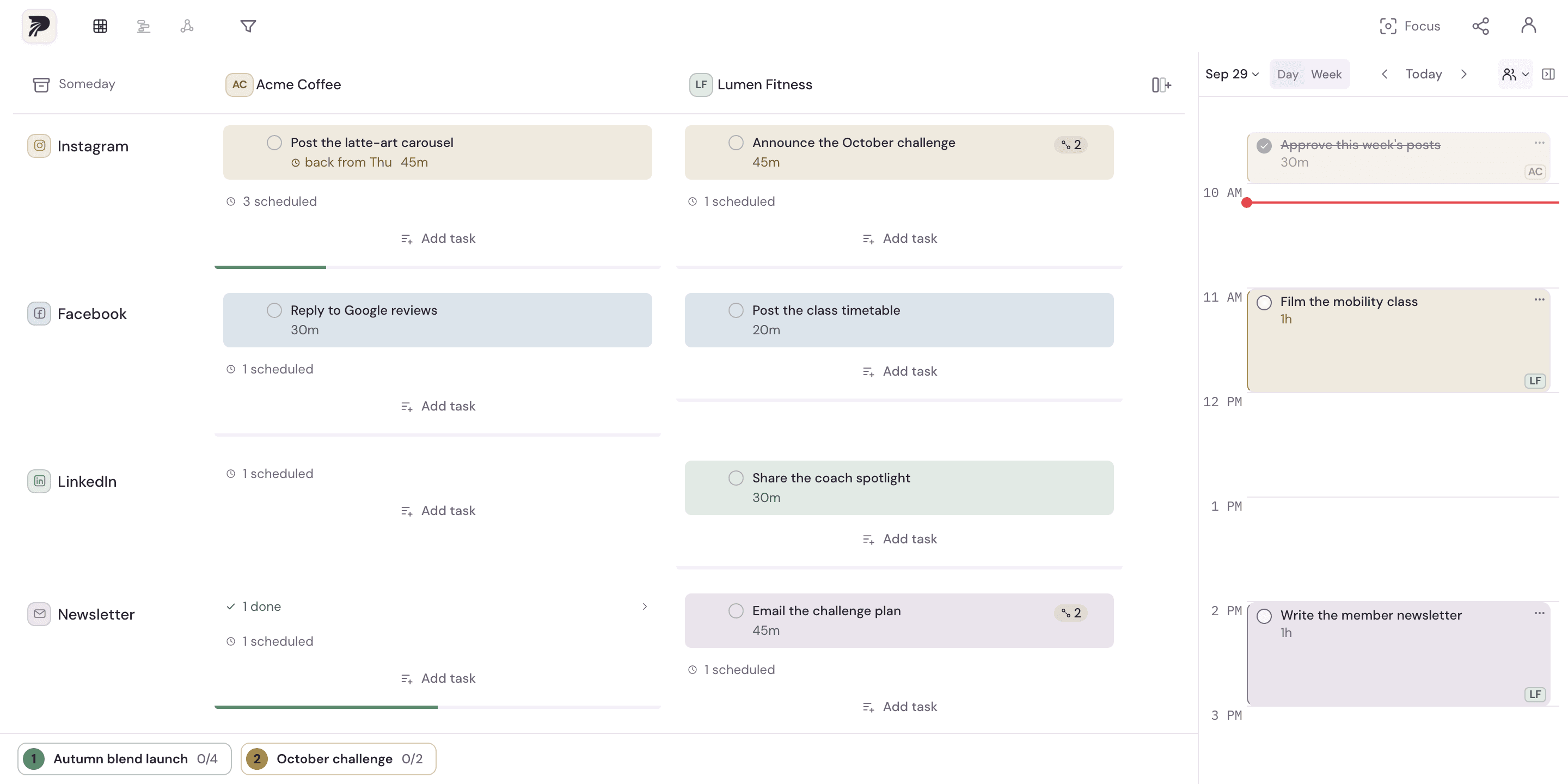
Connect an account
- Open calendar connections in your Polylane account.
- Choose Outlook and sign in to the account whose calendar you want to connect.
- Review the requested calendar permissions before completing the connection.
- Choose the calendars you want visible, then inspect the busy-time overlay in your plan.
The limit counts connected accounts, rather than eight different providers. Multiple calendars within an account are separate from that account count.
A practical example
Keep your personal calendar and work account connected. Plan a 90-minute writing batch around meetings and existing commitments without copying those meetings into another task list.
Send planned work on a paid plan
Solo and Studio can send selected planned blocks to a calendar you can write to. Choose the destination carefully, particularly when an account contains shared calendars. Paid plans also support .ics export.
Understand what happens after sending
- Sending is one-way. Editing the external event does not update the Polylane task.
- Unscheduling a task in Polylane does not delete an external event already sent.
- Review the destination calendar separately when sent work needs to change.